1. Login to your FuseSign account. On the left side, you will see the Menu. Go to Contacts.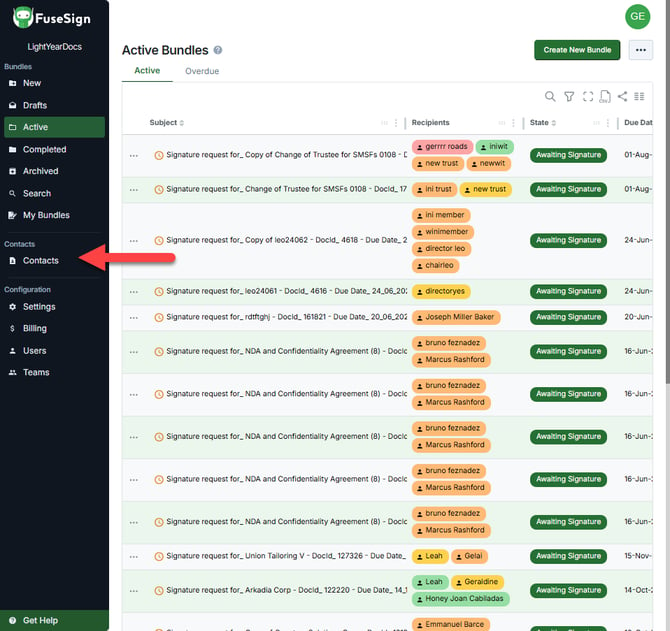
2. Look for the contact to be updated and click it. Go to the Source tab.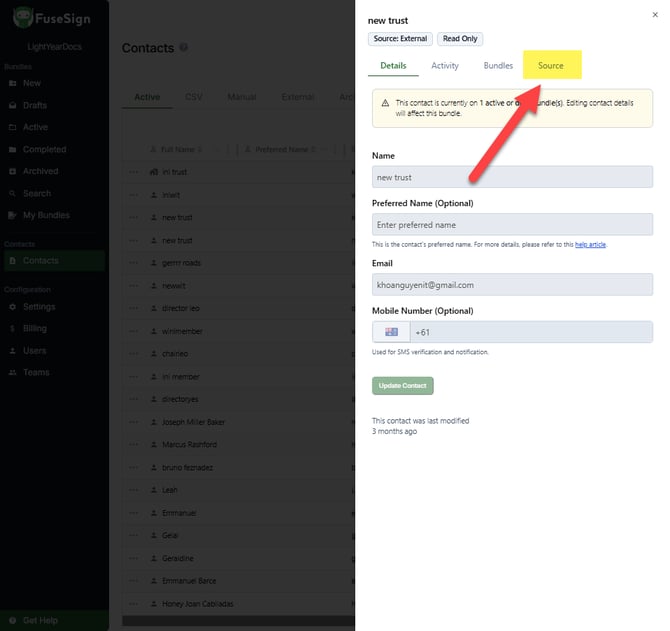
3. From the Source tab, click on Disconnect Contact from Source, then click on the Disconnect button. 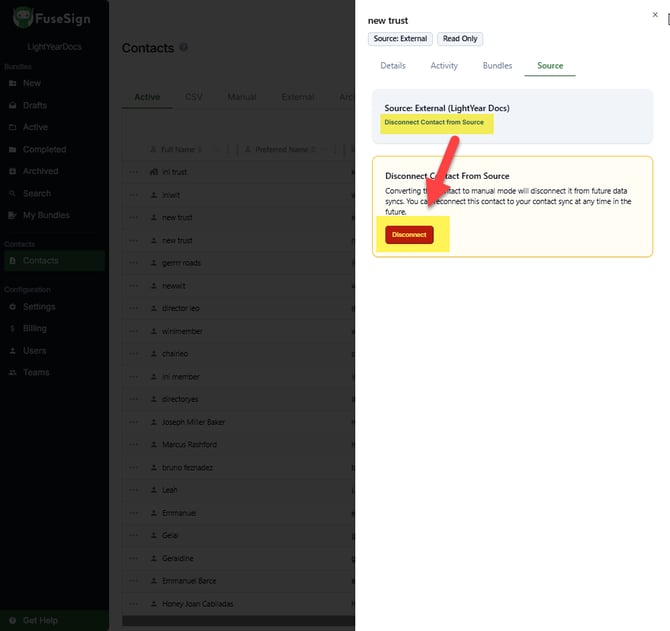
4. Once disconnected, it will show Reconnect Contact from Source. Then click on the Details tab.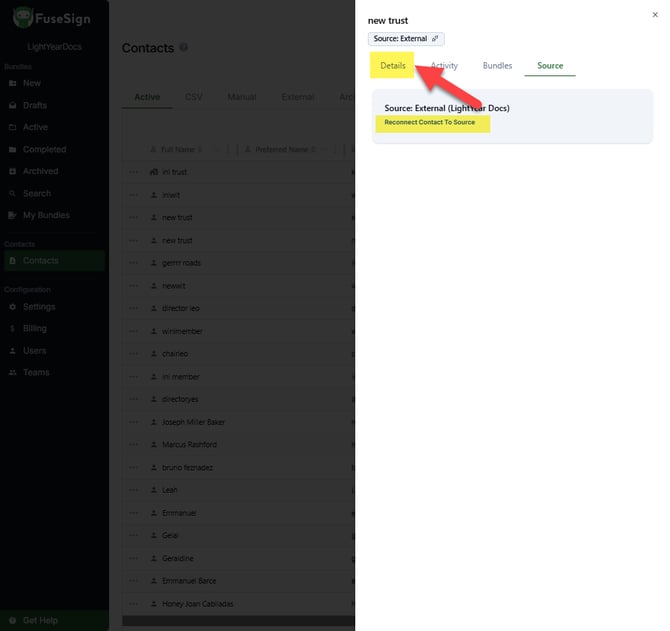
5. From the Details tab, it will now allow you to update the email address. Once change is made, the Update Contact will show as clickable so you can complete the change. 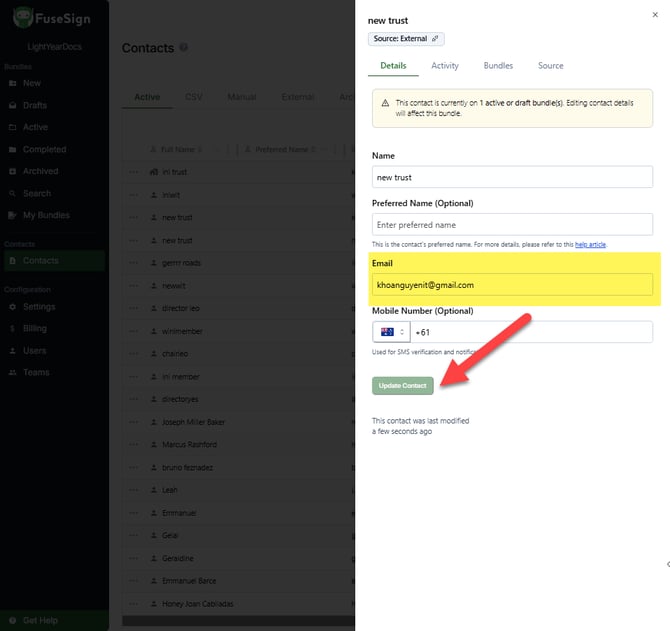
6. Once the email address is updated, click the contact again and go to the Source tab to Reconnect the Contact from Source. 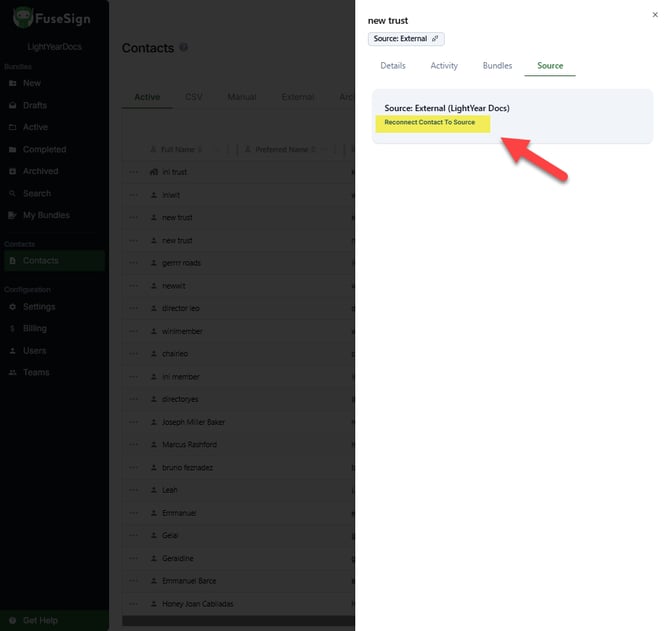
7. Once done, go back to Active tabs from the Menu and look for the document that you need to be signed. Click on the document and resend to the signers.
Published: 22/06/2026
English
